From your first company to reviewed books.

Set up your business, record a transaction, check where it appears and review the period. Follow these ten steps alongside real product screens from Beylesys Technologies, our local demonstration company.

Get it on Microsoft StoreOpen the usage guides

Before you start: have your company details, opening balances and a sample source transaction ready. Ask your accountant to confirm the opening date and tax setup.

Screenshots show the running product using test data for Beylesys Technologies. Empty screens show where work begins; they do not represent completed entries. Available controls can vary by role and company setup. Select a screenshot to view it at full size.

01

Create your account and choose the company

Open: Sign in → company selection

Complete account verification and the setup prompts, then create or select the business you want to work on. Keep each legal entity in its own company. This tour uses the local test company Beylesys Technologies.

Check before continuing: Check the active company name before entering or importing anything.

Read the detailed guide →
02

Review company settings

Open: Company Settings

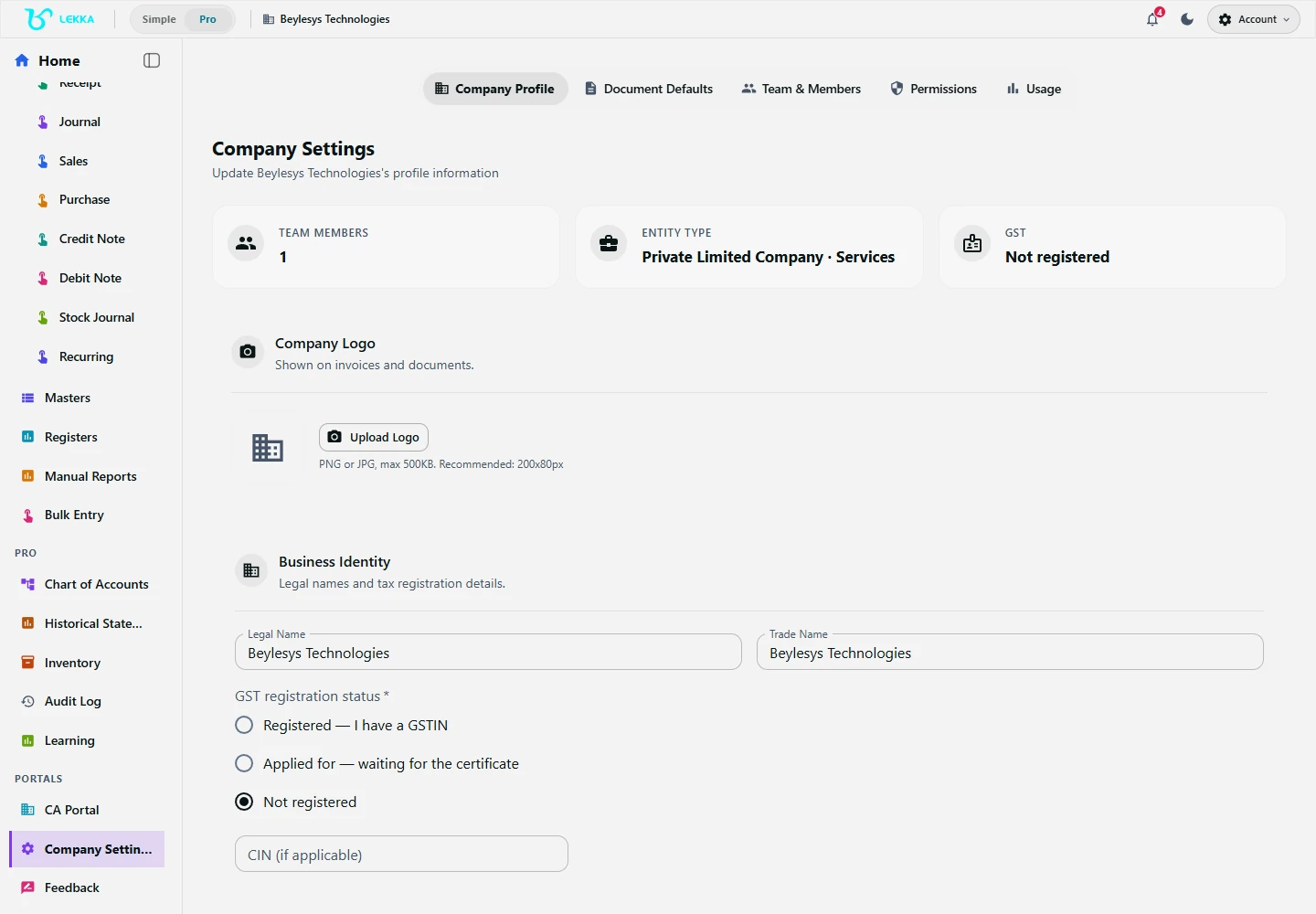
Check the legal name, company type, financial year, books start date and address. Enter tax registration and bank details where applicable. Agree the cutover date with your accountant before bringing in existing balances.

Check before continuing: The company details and opening date match the books you intend to maintain.

Read the detailed guide →
Company settings for the Beylesys Technologies test company in Beyle Lekka.

Review your company setup before entering day-to-day transactions.

Beylesys Technologies · local test company · sample records
Open full size
03

Add accounts, parties and opening balances

Open: Masters · Import & Export

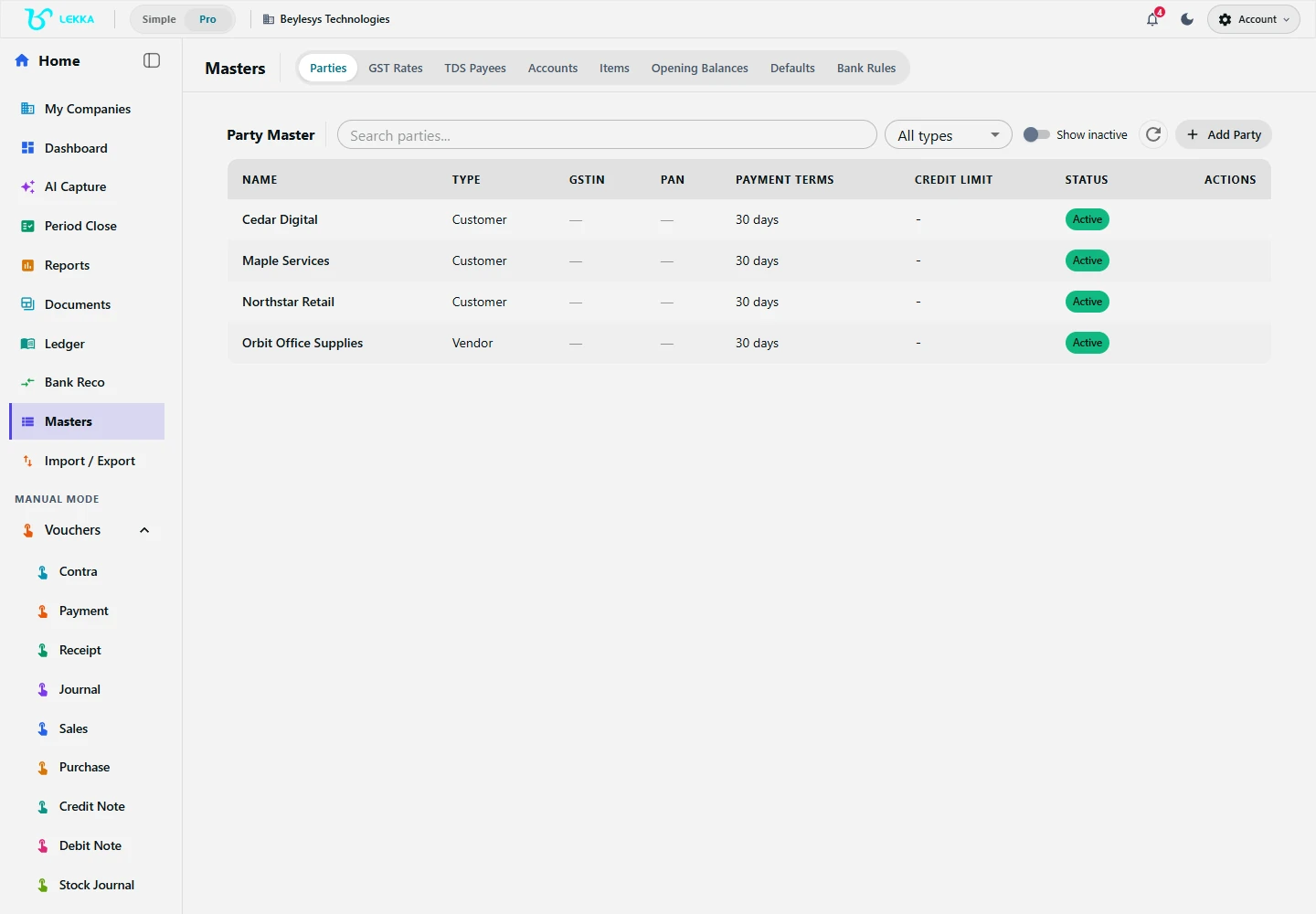
Masters are the reusable records for accounts, customers, suppliers and items. Create the records you need, fetch them automatically from running Tally, or manually upload each supported file exported from another tool. Enter opening balances once at your agreed cutover date, including unpaid customer and supplier invoices.

Check before continuing: Compare the opening Trial Balance and outstanding balances with your source records before entering new transactions.

Read the detailed guide →
Party masters workspace in Beyle Lekka.

Set up the customer and supplier details that your transactions refer to.

Beylesys Technologies · local test company · sample records
Open full size
04

Describe an expense or upload its bill

Open: Capture

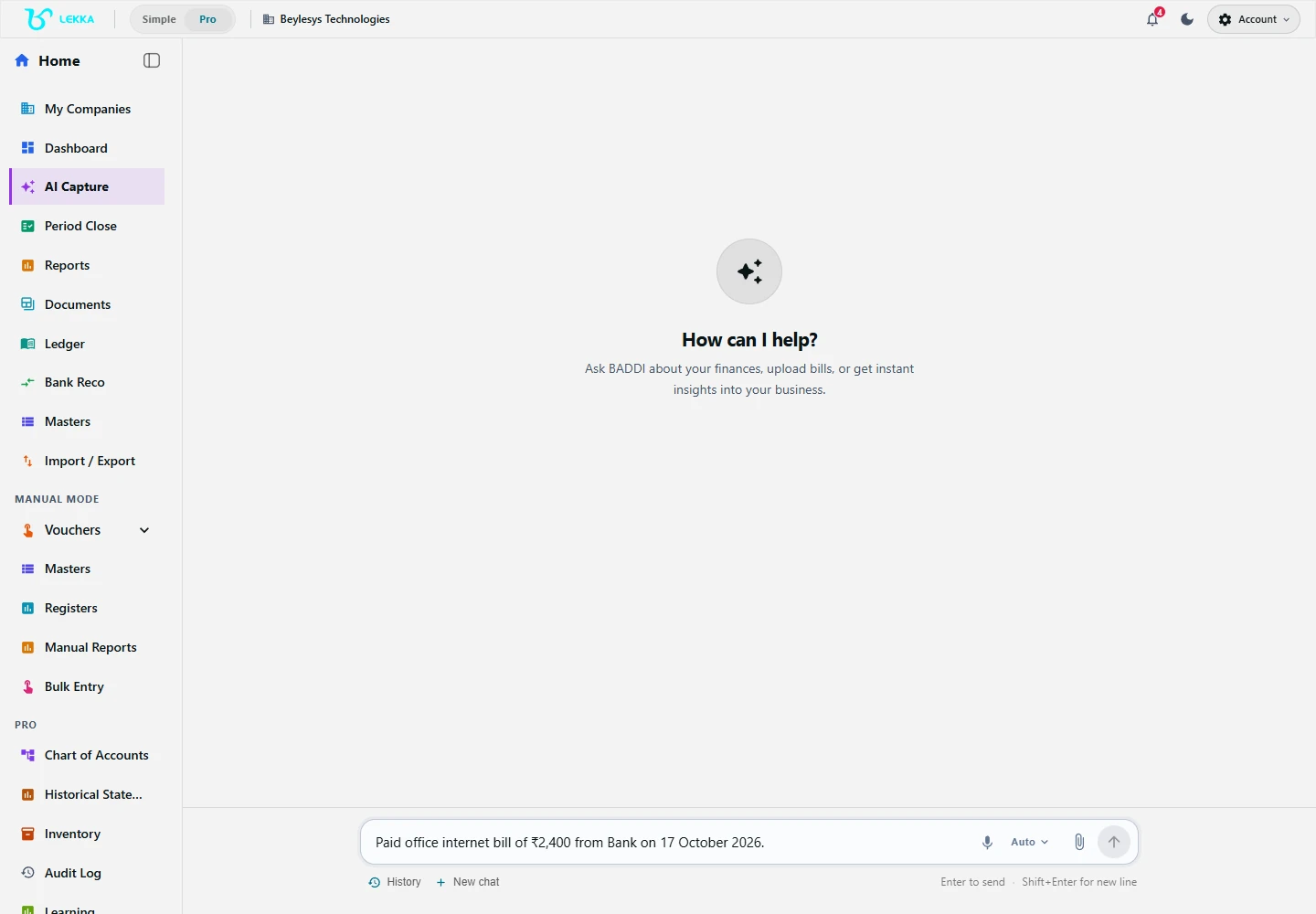
Select the correct company and open Capture. For a simple practice entry, describe an actual expense with the date, amount, purpose and bank or cash account: “Paid ₹2,000 office rent from bank.” You can also upload a supported bill or use the available voice input. Add missing details when Lekka asks.

Check before continuing: An AI draft is a suggestion. Read it before you confirm; the screenshot shows the actual Capture workspace, not a promise of a particular AI result.

Read the detailed guide →
Beyle Lekka Capture workspace for describing or uploading a transaction.

Capture is where you describe a transaction or provide a document to begin a draft.

Beylesys Technologies · local test company · sample records
Open full size
05

Review the draft, or enter a voucher manually

Open: Capture review · Manual Mode → Vouchers → Payment

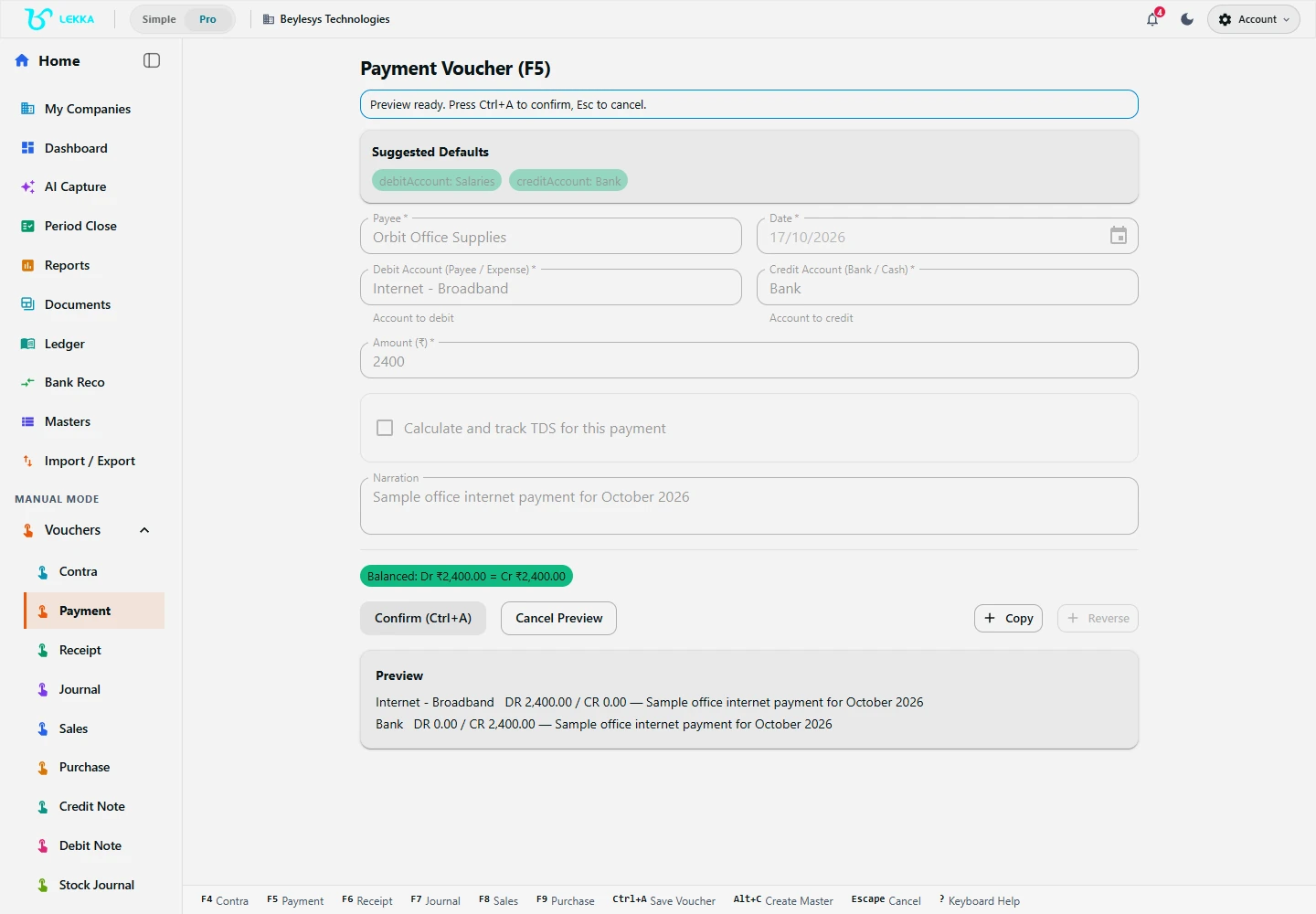
Check the date, party, accounts, amount, tax treatment and reference against the source transaction. For manual payment entry, fill the payee, date, debit account (expense or party), credit account (bank or cash) and amount. Review the balanced preview and use Confirm only when the details are correct. Use one entry method for a transaction to avoid duplicates.

Check before continuing: The debit and credit amounts agree, and the selected bank or cash account is the one used for payment.

Read the detailed guide →
Balanced debit and credit preview for a sample payment voucher.

Check the balanced payment preview before selecting Confirm. This demonstration preview has not been posted.

Beylesys Technologies · local test company · sample records
Open full size
06

Find the confirmed entry

Open: Manual Reports → Day Book

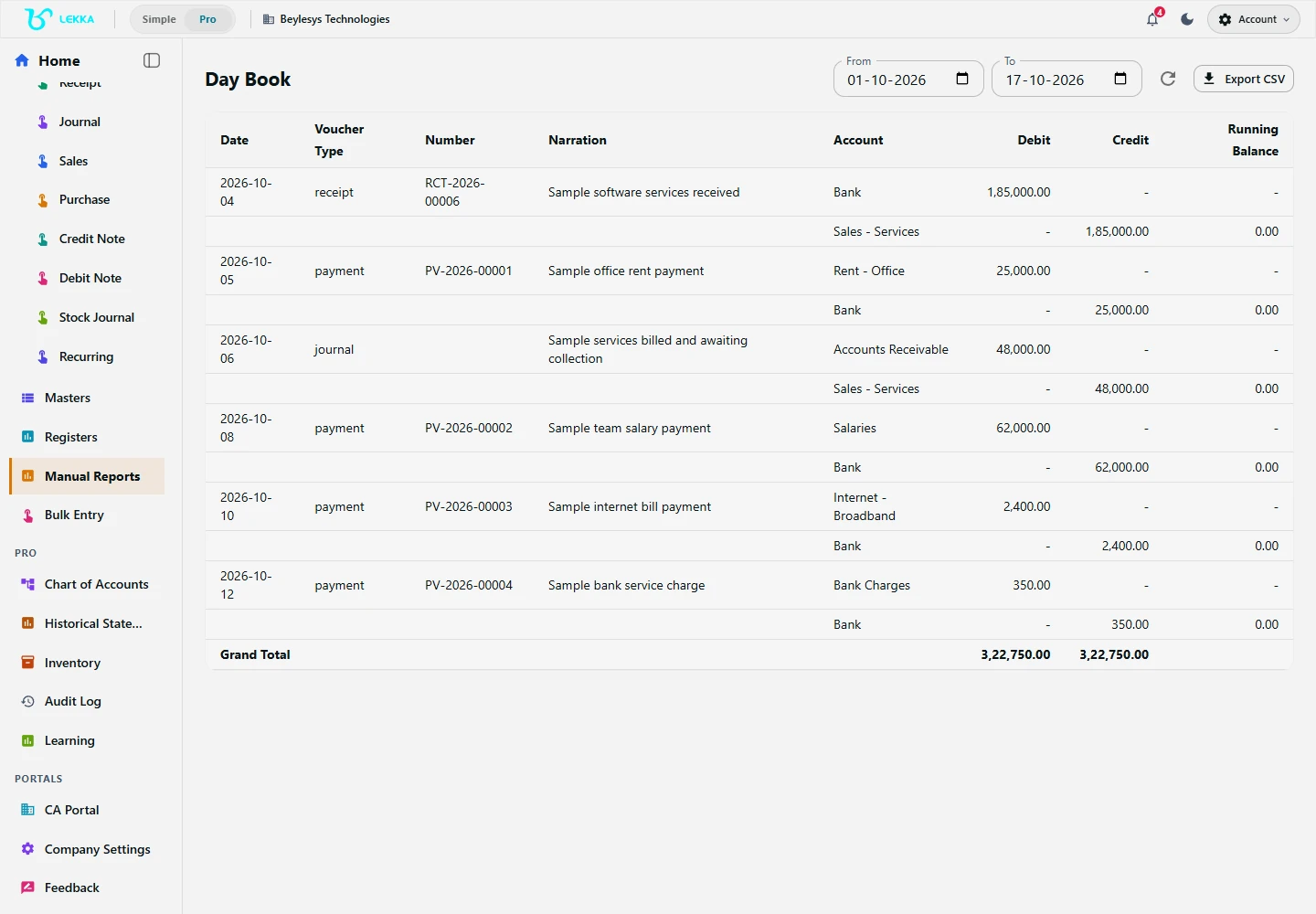
After confirmation succeeds, open the Day Book and set the date range to include your entry. Locate its voucher number and inspect the accounts and amount. Open the relevant ledger or account statement to check the effect on the balance.

Check before continuing: The transaction appears once in the correct period. If it is missing, check filters and posting status before entering it again.

Read the detailed guide →
Day Book report in the Beyle Lekka manual accounting workspace.

Use the Day Book to review saved vouchers for the selected period.

Beylesys Technologies · local test company · sample records
Open full size
07

Match the books to the bank statement

Open: Bank Reconciliation

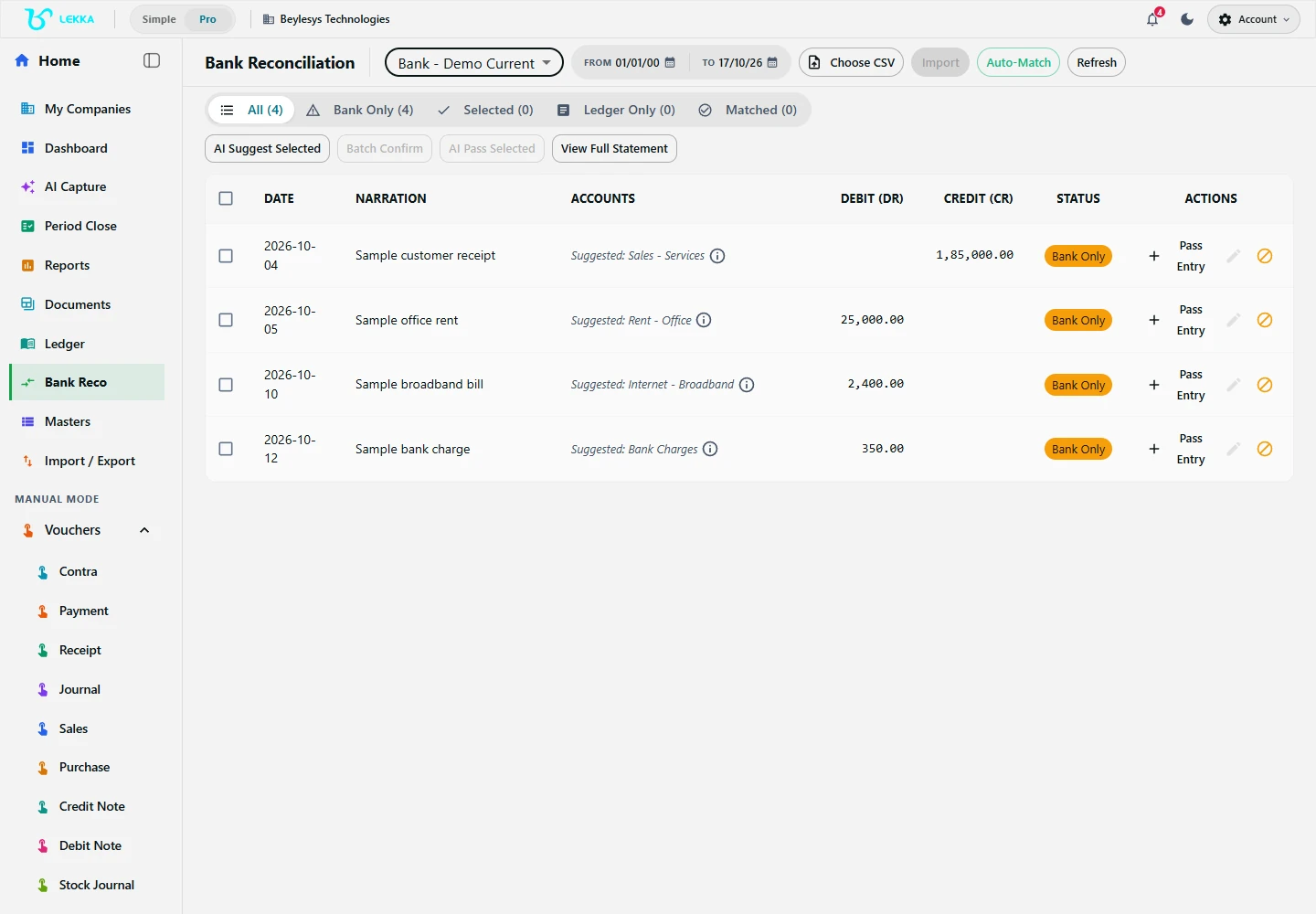
Select the bank account and statement period, then import a supported statement. Compare the imported balance and line count with the original. Review suggested matches using the amount, date and reference. Investigate unmatched lines and check any proposed new voucher before confirming it.

Check before continuing: Each statement line has a reviewed match or a recorded reason for the remaining difference.

Read the detailed guide →
Bank reconciliation workspace in Beyle Lekka.

Bank reconciliation is a separate review step: bring in a statement and check its lines against your books.

Beylesys Technologies · local test company · sample records
Open full size
08

Read the financial reports

Open: Reports

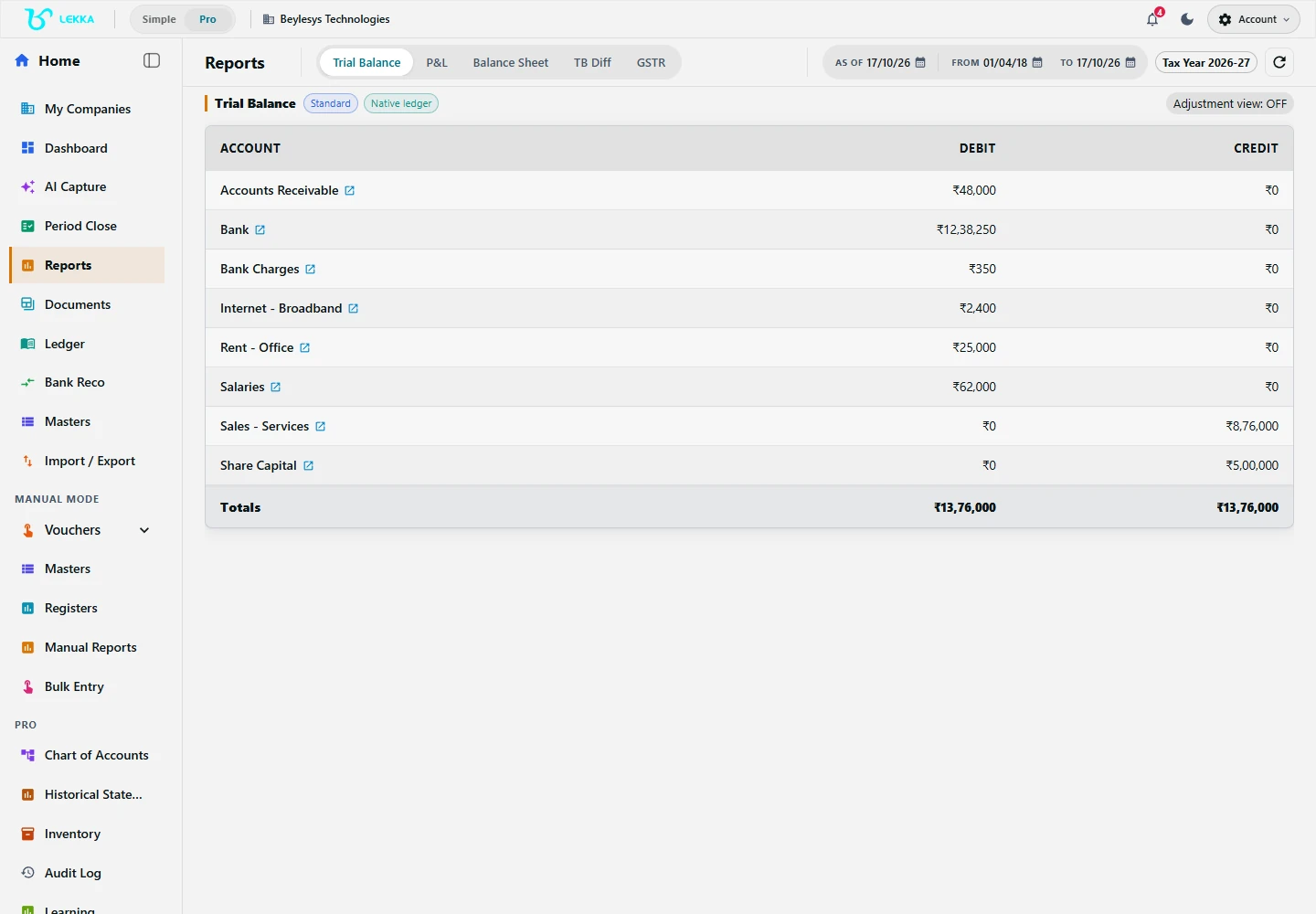
Select the company and reporting period, then review the Trial Balance, Profit & Loss and Balance Sheet. Use account statements and the Day Book to investigate unexpected figures. Check customer and supplier balances separately when reviewing money owed to you or by you.

Check before continuing: The report period is correct, opening balances agree and the reported movements can be traced to confirmed entries.

Read the detailed guide →
Beyle Lekka reports workspace for the Beylesys Technologies test company.

Open reports to review the records in your selected company and reporting period.

Beylesys Technologies · local test company · sample records
Open full size
09

Give your accountant the access they need

Open: Company or organisation member settings

Select the company you intend to share, review the available roles and invite the correct email address. After the invitation is accepted, check the member’s visible company and permitted actions. Access to specialist reports depends on the company setup, role and plan.

Check before continuing: Your accountant can access the intended company with the role you selected.

Read the detailed guide →
10

Review and close the period

Open: Close

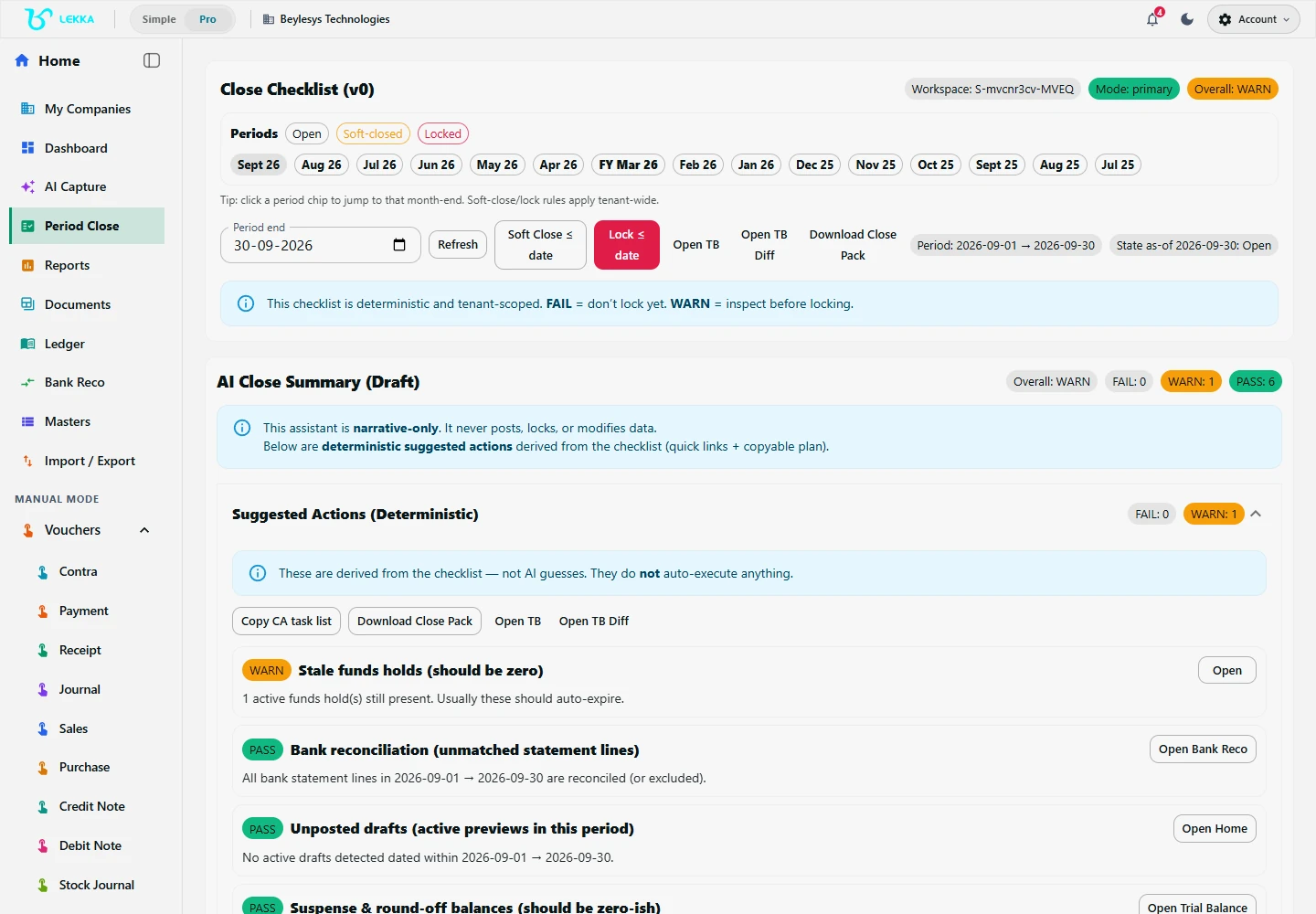
Review outstanding drafts, bank differences, tax questions and corrections with your accountant. Compare the Trial Balance and supporting ledgers, record unresolved items and complete the available close checklist. Use close or lock controls only after the reviewer has checked the period.

Check before continuing: The review is recorded, open items have an owner and the period status reflects the action you intended.

Read the detailed guide →
Period close workspace in Beyle Lekka.

Review period controls as part of your accountant-led closing workflow.

Beylesys Technologies · local test company · sample records
Open full size

A shared workflow for owners and accountants

Owners and accountants use the same company records. Divide the work according to who enters, checks and reviews them.

For business owners

Once setup is complete, start with steps 4–6 to record and verify daily work.

  • Select the company and capture the transaction
  • Review the suggested accounts, amount and tax before confirming
  • Check the Day Book, balances and outstanding dues
  • Give your accountant access for reconciliation and period review

For accountants and CAs

Start with setup and opening balances, then work through reconciliation and review.

  • Agree the cutover date and verify masters and opening balances
  • Review vouchers, source documents and registers
  • Reconcile bank statements and investigate unmatched lines
  • Review tax records and statements before closing the period
Find guides for invoices, stock, imports, tax records and more →

Walk through your own workflow.

Get Beyle Lekka from Microsoft Store and follow the setup, transaction and review steps for your business.

Get it on Microsoft StoreSee pricing