Open: AI Capture → prompt bar → Ledger
Before you begin
Know the transaction date, amount, payment account and source reference. AI requests require a connection and available account access.
Practise in a test company first. Check the active company and your permissions. Available options depend on your plan, role and platform.
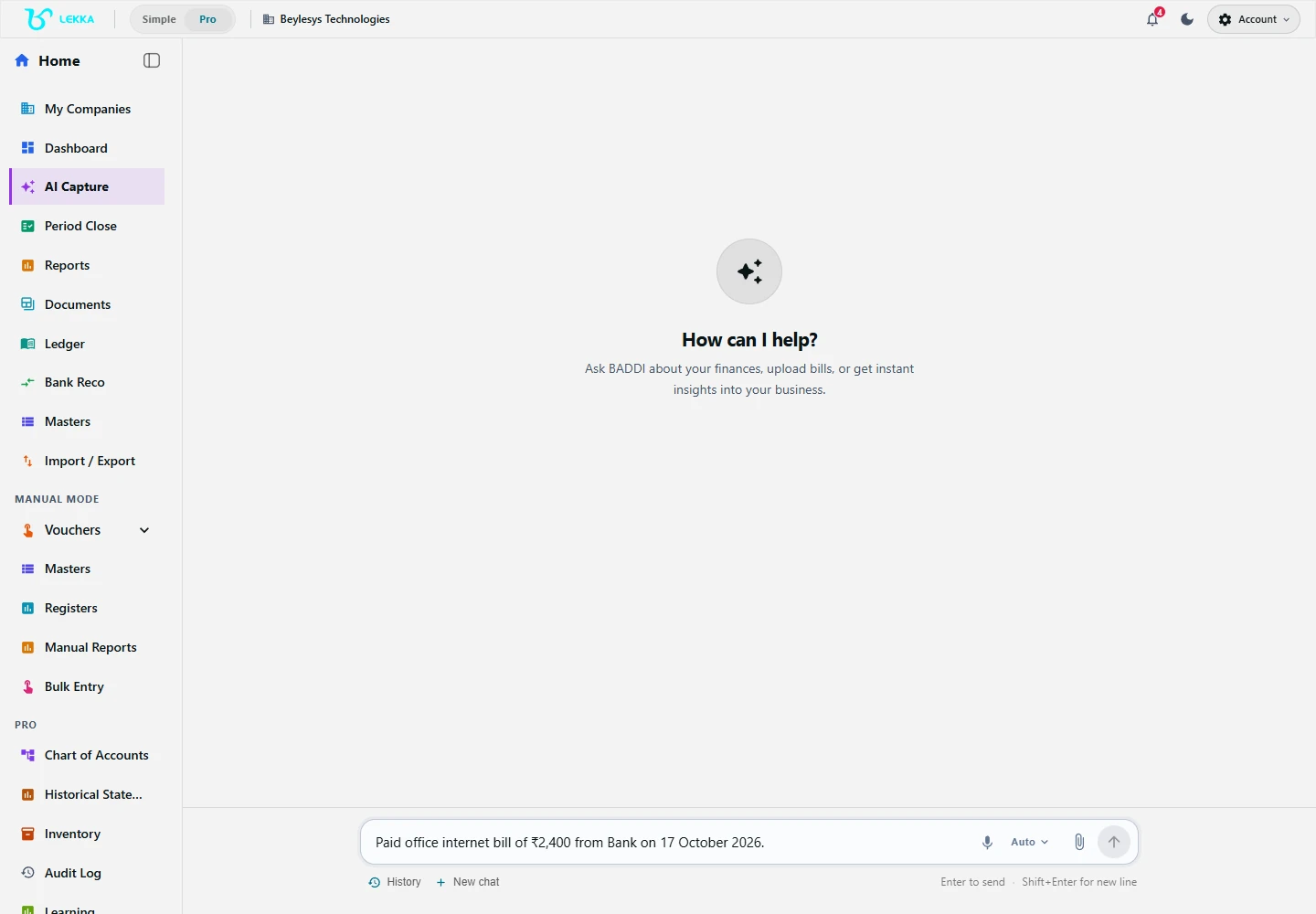
Capture is where you describe a transaction or provide a document to begin a draft.
Beylesys Technologies · local test company · sample records- 01
Check the company in the header, then open AI Capture. In your test company, enter an example such as “Paid office electricity bill of Rs 2,400 from HDFC Bank on 17 October 2026.” Use an account that exists in your test books.
- 02
Send the message. Answer any question about the account, party, date or tax treatment in the same conversation.
- 03
Read the proposed voucher. Check the expense account, paying bank, date, amount, narration and any tax lines against the source bill.
- 04
Correct a wrong field in the offered editor or by replying to the clarification. Generate and review the updated preview.
- 05
Select Confirm & Save, or Save This in Simple mode. Wait for the posting result; a preview alone has not entered the books.
- 06
Open Ledger for the transaction date and inspect the expense and bank movements. Check the entry before retrying if confirmation was interrupted.
Check your result
One Rs 2,400 electricity expense appears against the selected bank account in the test company.
If something doesn’t look right
If the draft uses the wrong account, correct the selection before confirming. Do not submit a second copy to fix a posted entry.
Contact support →