Open: Registration → business setup → Settings → Company Profile
Before you begin
Have your business constitution, address, tax registration details, bank details and books start date ready. If you received an invitation, accept it before creating another workspace.
Practise in a test company first. Check the active company and your permissions. Available options depend on your plan, role and platform.
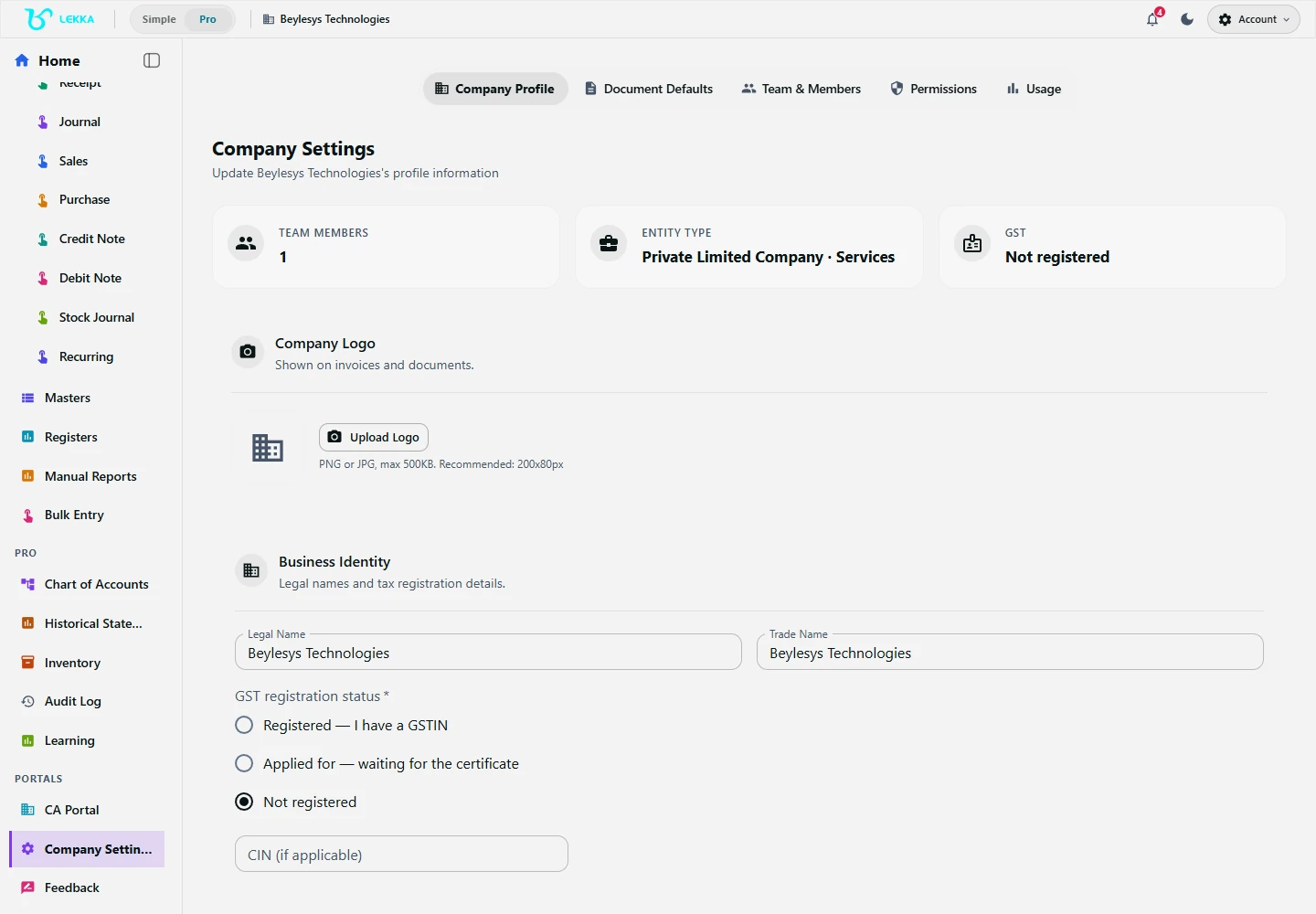
Review your company setup before entering day-to-day transactions.
Beylesys Technologies · local test company · sample records- 01
Register or sign in with your existing account. Complete email verification when prompted, then choose the business account setup and the plan shown for your needs.
- 02
Enter your company name. Choose Services, Trading or Manufacturing, then select your industry and Constitution of Business.
- 03
Complete the state, PAN, GST registration status and applicable entity fields. Add your address, contact details and bank accounts.
- 04
Set the Books Start Date and primary bank account. Review the setup and finish. Check the company name in the application header.
- 05
Open Settings → Company Profile to review your details. Create customers and suppliers in Masters → Party; set up stock items in Inventory if you trade goods.
- 06
If you are moving existing books, agree a cutover date and enter or import the opening balances once. Compare them with the old Trial Balance before entering new transactions.
- 07
Record one transaction in AI Capture or Manual Mode. Review the preview, confirm it, then find the posted entry in Ledger and check Reports for the same period.
Check your result
You are in the right company and period, and you can find your first confirmed voucher.
If something doesn’t look right
If balances differ, check the opening date and whether imported records overlap with manual entries.
Contact support →