Open: Reports → Trial Balance / Profit and Loss / Balance Sheet
Before you begin
Confirm which reporting period and company you need. Finish reviewing source entries and opening balances relevant to that period.
Practise in a test company first. Check the active company and your permissions. Available options depend on your plan, role and platform.
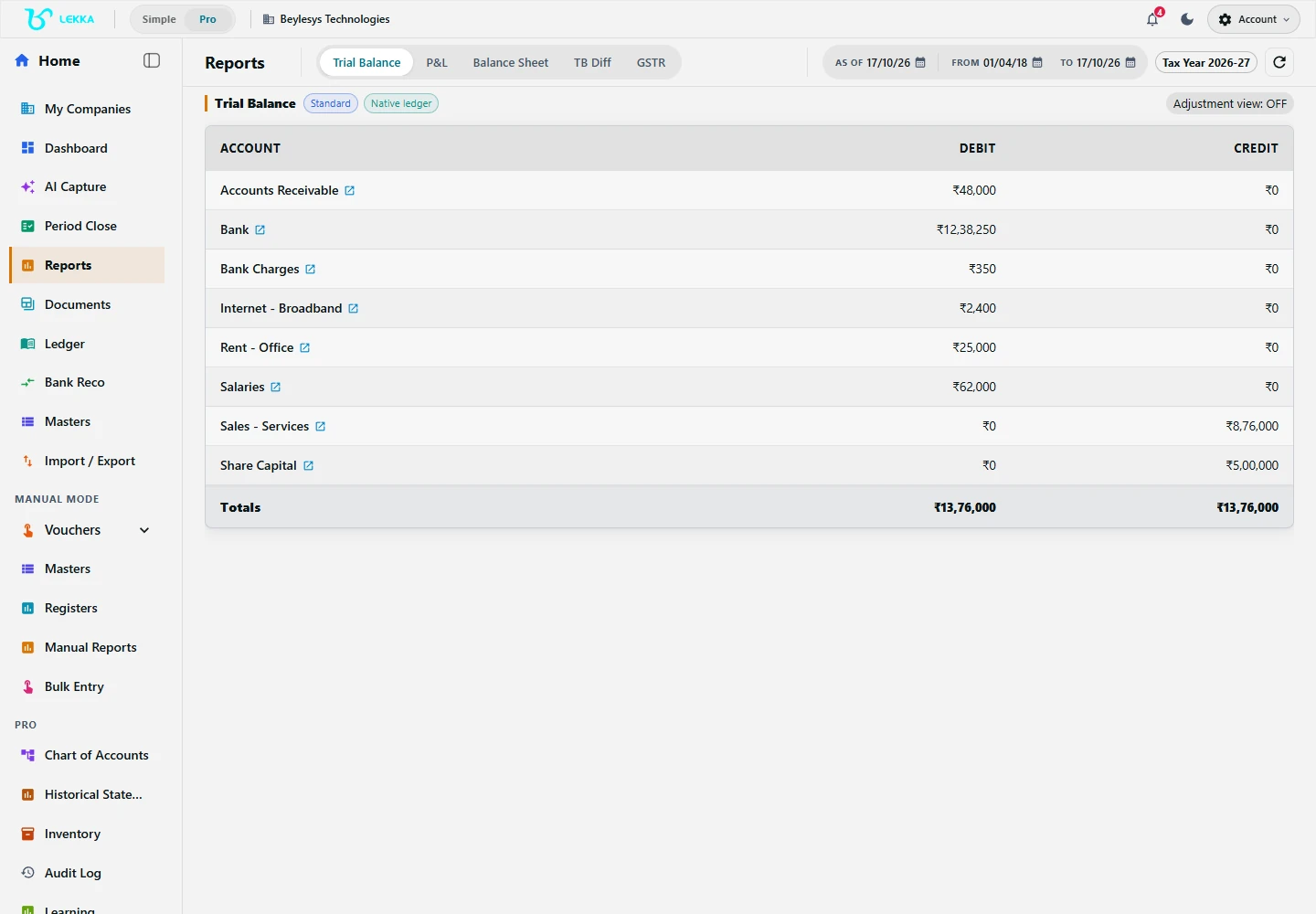
Open reports to review the records in your selected company and reporting period.
Beylesys Technologies · local test company · sample records- 01
Check the active company and open Reports. Select the reporting dates; switch to Pro if an advanced report is not visible.
- 02
Open Trial Balance, called Account Balances in Simple mode. Compare opening balances, period movements and closing balances with your expected totals.
- 03
Open Profit and Loss for the same period. Inspect income and expense accounts that are unexpected or unusually large.
- 04
Open Balance Sheet, called What You Own & Owe in Simple mode. Review assets, liabilities and equity for the intended reporting date.
- 05
Follow available account detail links or open Ledger/account statements to trace differences to their vouchers. Correct the underlying entry through its permitted workflow and refresh the report.
- 06
Use the available print/export action, or Import / Export → Export for the report catalogue. Open the output and check its company, dates, units and totals before sharing.
Check your result
You can follow the report balances back to the entries that explain them.
If something doesn’t look right
Check period filters, opening balances and unposted drafts before making a correction.
Contact support →