From source balances to reviewed financial statements.
Prepare a Balance Sheet, Profit & Loss statement and notes from your books or imported sources. Mapping means assigning source accounts and balances to the right financial-statement headings. Review those classifications, resolve unmatched items and check the figures before finalising.
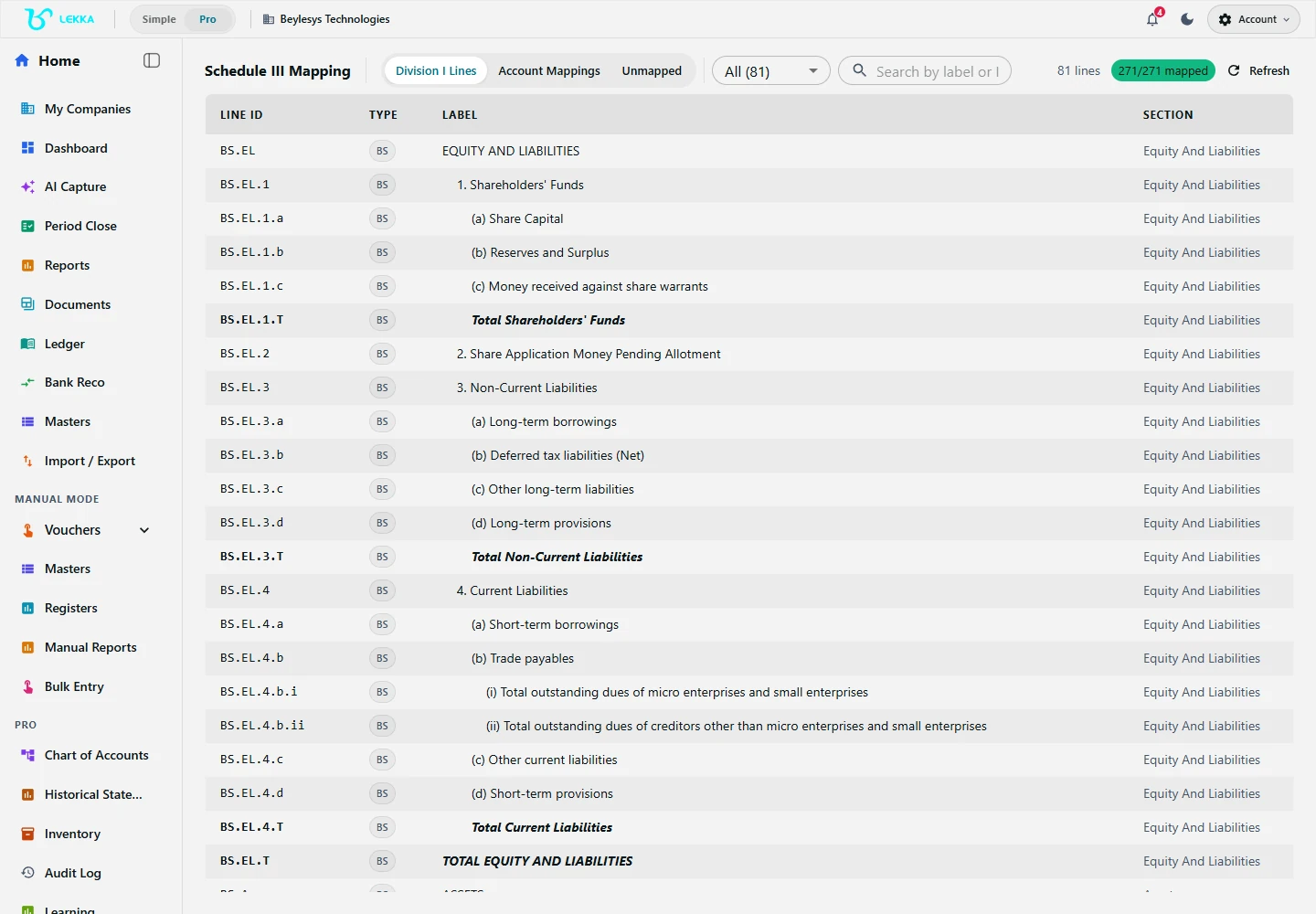
Review the Division I reporting lines and account mappings. During the current pilot, permitted changes require the desktop app; web access supports viewing and export.
Beylesys Technologies · local test company · sample recordsA mapping your reviewer can actually follow
Suggestions, not surprises
The mapper proposes financial-statement classifications for your source accounts. Review mapped balances as well as unmatched items, and adjust classifications that need your judgement.
Exceptions get a queue
Unmapped or ambiguous heads collect in one list with context — resolve them individually and watch the coverage counter close.
Notes written in plain words
Prepare supporting notes alongside the statements. Review the figures and any AI-drafted text against the selected source and your client’s records.
From Trial Balance to signed-off statements
Choose the source and period
Choose live books or a supported imported Trial Balance, Balance Sheet or reporting context. During the pilot, prepare and change sources on desktop using an eligible CA firm-owner account; use the web app to view and export existing results. Confirm the company, financial year and source.
Review the mappings
Inspect the statement headings and their underlying accounts. Review reused mappings as well as new suggestions for the selected year.
Resolve unmapped items
Work the exceptions queue until coverage is complete; every resolution is recorded with who and when.
Review notes and reconcile
Notes to accounts draft with narratives; the reconciliation view ties every statement line back to source balances.
Finalise and export
Complete the available review and finalisation steps, then export the statements and supporting notes. Check the output with your accountant before using it for filing.
What's included
Mapping, notes, review and output in one flow.
AI-assisted classification of source accounts into Schedule III statement headings
Unmapped-item queue with resolution tracking
Mapping history — accepted mappings carry across years
Notes to accounts with AI-drafted narratives from underlying ledgers
Reconciliation feedback tying statement lines to source balances
Sign-off workflow with reviewer attribution
Balance Sheet and P&L presentation for the supported company setup
Statement and supporting-package exports available in the reporting workflow
FY 2025-26 statements for Acme Traders
How a CA firm closes a client’s year-end reporting.
- 1
Select the client’s FY 2025-26 Trial Balance as the mapping source.
- 2
AI maps 214 of 218 heads using last year’s accepted mappings plus suggestions for new ledgers.
- 3
Four exceptions — a new term loan, a grants account, two merged ledgers — are resolved in the queue with notes.
- 4
Notes to accounts draft with narratives; the reconciliation view confirms every line ties out.
- 5
The reviewer completes the available finalisation steps and exports the statements and notes for further review.
Result: financial statements with source balances, reviewed classifications and supporting notes.
FAQ's
Supported imports depend on the source type and enabled workflow; the Balance Sheet input appears only when enabled. During the pilot, use an eligible CA firm-owner account on desktop for Schedule III imports and changes. Historical statement viewing is separate from selecting a supported mapper input. Check the period and statement context before comparing figures.
No. Accepted mappings are remembered per company and carry forward — a new year usually means reviewing only new or changed ledgers.
During the current pilot, Schedule III changes and sign-off require an eligible CA firm-owner account on desktop. Ordinary business ownership or a staff assignment alone does not grant write access; permitted reviewers can view and export existing results. Review the access notice, source context, notes and sign-off history before finalising.
Statements with a trail you can defend.
Book a demo and watch a Trial Balance become reviewed Schedule III statements — mappings, notes and sign-off included.