Know where your business stands.
See what you earned, what you owe and who still needs to pay you. Open your financial, tax or stock reports, then follow a figure back to the entries that explain it.
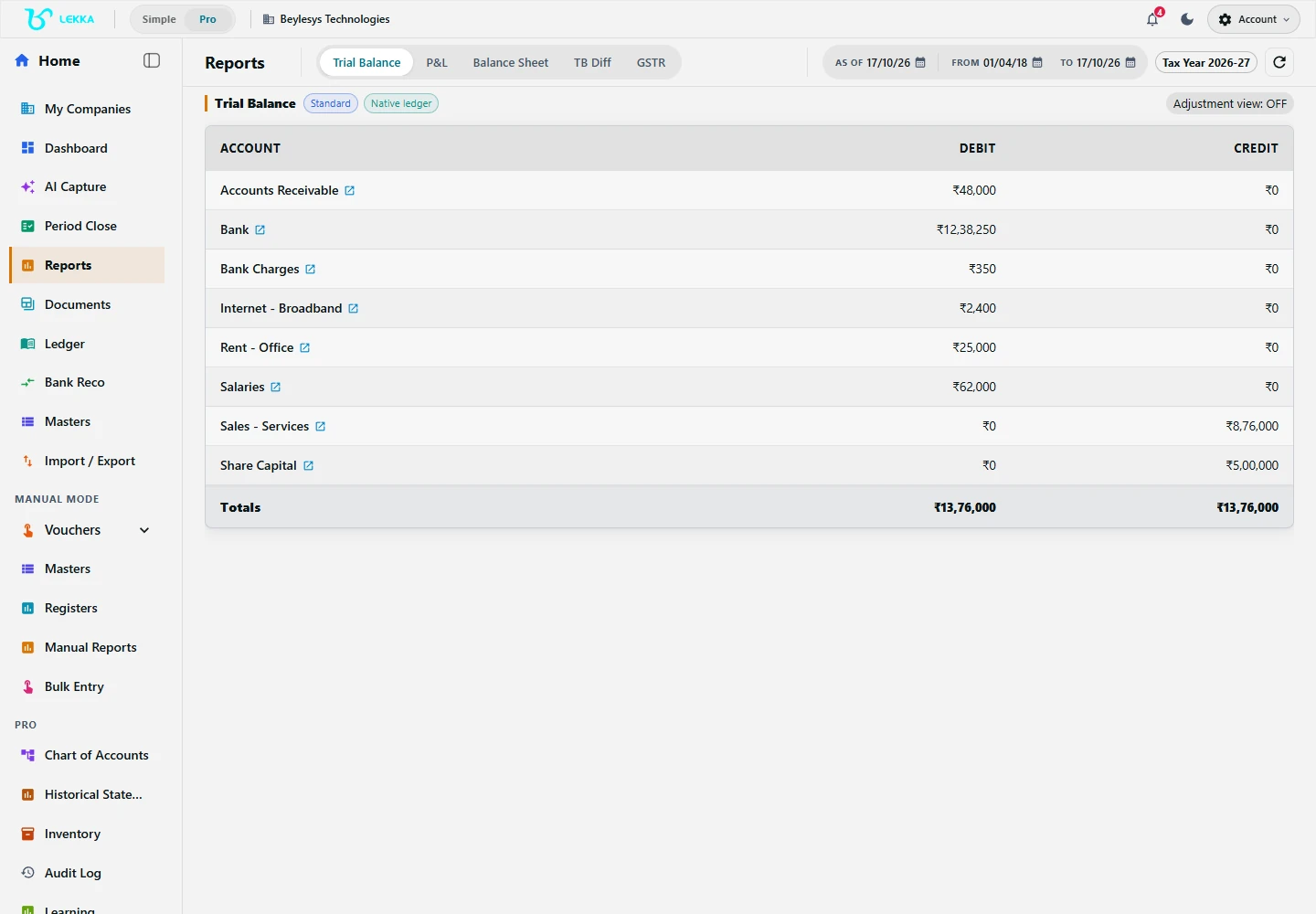
Open reports to review the records in your selected company and reporting period.
Beylesys Technologies · local test company · sample recordsSee the number. Find the reason.
Drill down to the entry
Something looks off? Open the figure in your Trial Balance, P&L or Balance Sheet to see the ledgers and vouchers behind it.
Narratives in plain language
Read a short AI summary alongside the numbers — what changed, which expenses rose and what needs a closer look. You and your CA can start with the same explanation.
Exports people can use
Use the export formats offered by each report: spreadsheets for analysis, PDFs for sharing and CSV where supported. Review Schedule III statements and supporting notes before sharing the output.
From a question to its entries
Pick the report and period
Choose a financial, tax, stock or outstanding-balance report. Set the period you want to see and the one you want to compare it with.
Read the summary
Start with the totals and the AI summary. See what changed and decide where to look next.
Drill into anything odd
Follow an unexpected balance to the account, voucher and original document.
Export or share
Send the Excel/PDF, or invite your CA to review the same live report with their own access.
What's included
Start with the question you need answered.
Trial Balance with account drill-down to ledgers and vouchers
Profit & Loss and Balance Sheet with entity-appropriate presentation
Day Book for daily voucher activity with debit/credit detail
Receivables and payables ageing with outstanding buckets
DSO/DPO metrics for collection and payment timing
Cash-flow and fund-flow views for the period
Stock position, movement and ABC/XYZ reports
AI period narratives summarising movements in plain language
Legacy Trial Balance comparison for migration verification
Report exports to Excel, PDF or CSV where supported; Schedule III statement and supporting-package exports
“Why did margin dip in April?”
Follow a change in profit back to the bills behind it.
- 1
Open the P&L for April with the March comparison.
- 2
The AI narrative flags it: material cost up 9%, freight up ₹18,400, sales flat.
- 3
Drill into Purchases — three bills from a new supplier carry higher rates.
- 4
Export the two-month P&L to PDF and share it in the partners’ chat with the narrative attached.
Result: the question answered from live books, with the entries to back every line.
FAQ's
Yes. Available formats depend on the report and include Excel, PDF, CSV and JSON. Check the export options in the relevant financial, tax or Schedule III reporting screen.
A plain-language summary alongside each period report: what changed, the largest movements, and what deserves a second look. The numbers stay authoritative; the narrative just reads them for you.
Yes — invite your CA with read-only or close-only access and they review the same live reports, with review notes on top.
Your numbers. With the detail behind them.
Explore the workflow, open a report and follow a balance back to the entries. See what your books are telling you.