Open: AI Capture → Upload document → Documents / Ledger
Before you begin
Have a clear bill showing supplier, invoice number, date, line items and total. Check Documents or Ledger for an existing copy first.
Practise in a test company first. Check the active company and your permissions. Available options depend on your plan, role and platform.
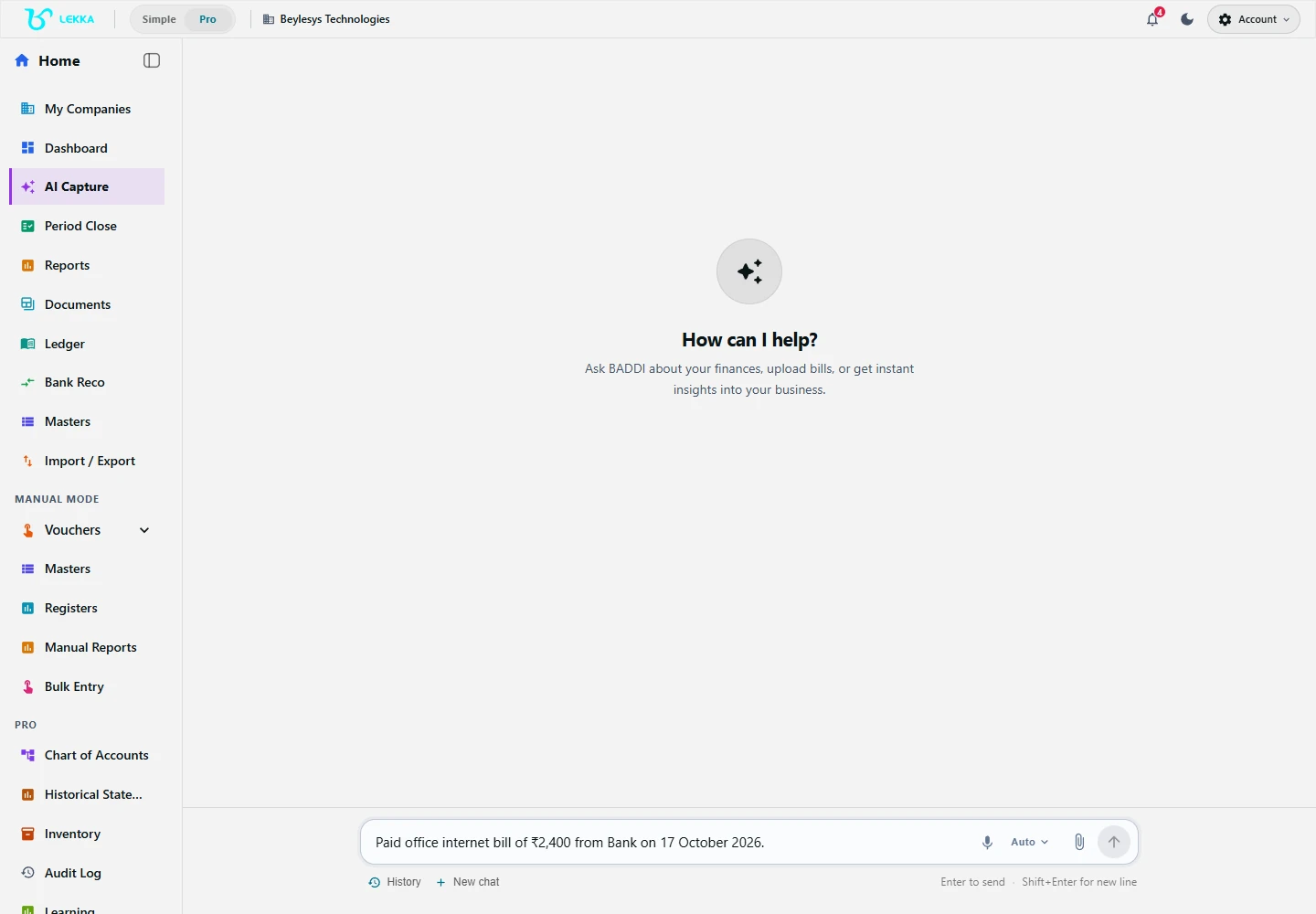
Capture is where you describe a transaction or provide a document to begin a draft.
Beylesys Technologies · local test company · sample records- 01
Open the correct company and AI Capture. Choose Upload document and the purchase or expense option appropriate to the bill.
- 02
Select a format accepted by the picker and wait for upload and extraction. Read any processing error before trying again.
- 03
Check the extracted supplier, document type, invoice date and number. Resolve any type-mismatch dialog by comparing it with the actual bill.
- 04
Compare the quantities, rates, tax details and total with the source. Complete missing party details or clarify whether the bill is paid or outstanding.
- 05
Review the accounting preview and correct any differences. Confirm only the current, checked preview and wait for the Posted result.
- 06
Open Ledger to verify the bill and supplier balance. Open Documents to inspect the associated document and use Download or Open in new tab where available.
Check your result
The voucher matches the bill, and you can open its supporting document.
If something doesn’t look right
If extraction is incomplete, try a clearer scan or enter the missing fields manually. Check for an existing invoice before retrying.
Contact support →