Open: Pro mode → Schedule III for review; desktop Compliance Entry for permitted preparation
Before you begin
Confirm that the company supports the required Schedule III presentation, and prepare its current/prior-period sources. LLPs, co-operatives and non-Section-8 non-profits use their separate entity reporting workflows; Section 8 companies follow their applicable company presentation. During the current pilot, Schedule III changes require an eligible CA firm-owner account on desktop. Ordinary business ownership or a staff assignment alone does not grant write access. Permitted web users can view and export existing results. Check the access notice before starting.
Practise in a test company first. Check the active company and your permissions. Available options depend on your plan, role and platform.
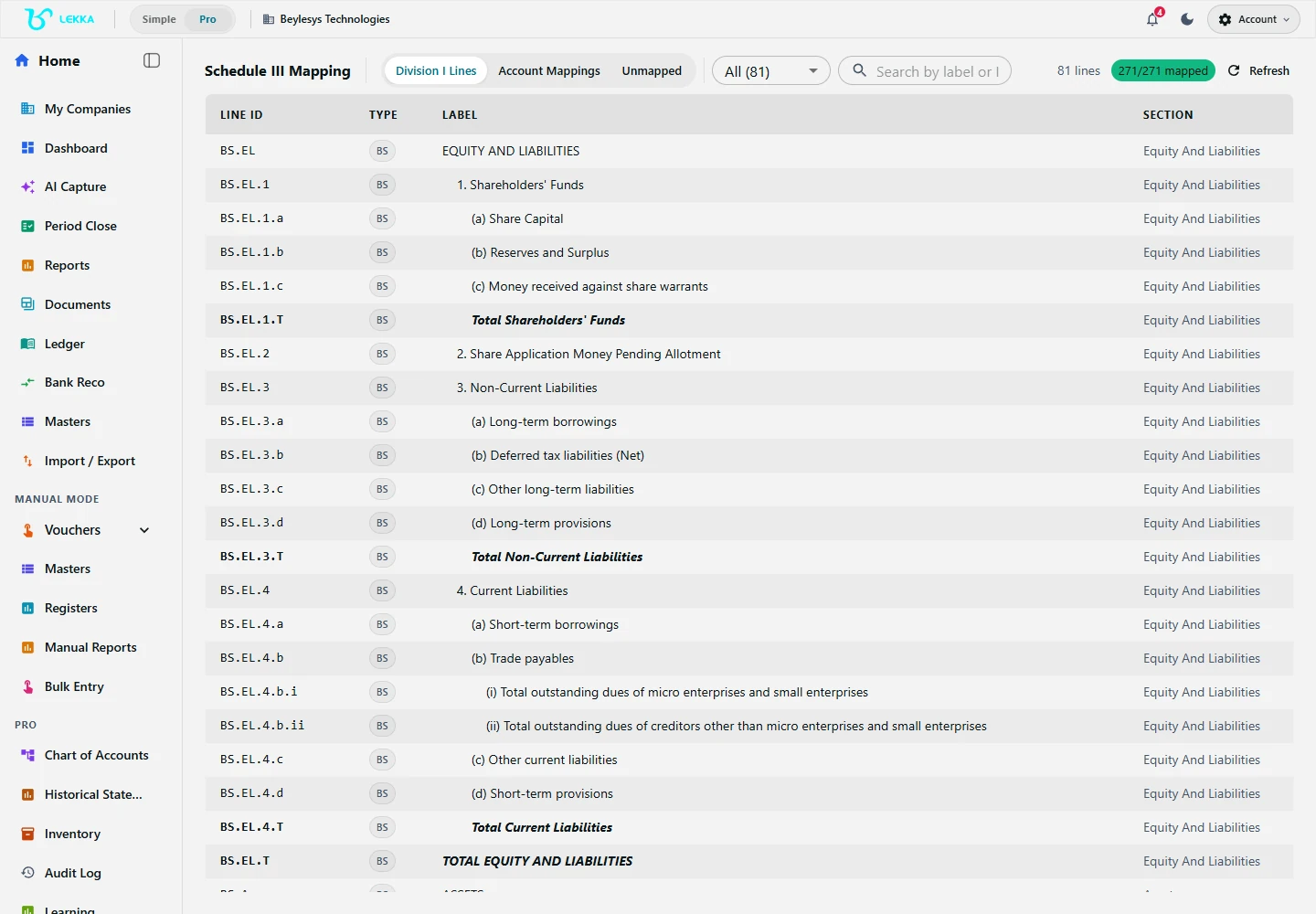
Review the Division I reporting lines and account mappings. During the current pilot, permitted changes require the desktop app; web access supports viewing and export.
Beylesys Technologies · local test company · sample records- 01
Open the correct client and Schedule III. Review the mapping screen, selected division and Lines, Mappings or Unmapped areas offered by the workspace. Check the reporting period and existing context.
- 02
Read any access notice. If it says changes are made in the desktop app, continue viewing existing information or exporting reports on the web. Move preparation to desktop with the permitted account; a visible mapping screen does not itself grant edit access.
- 03
On desktop with write access, start a compliance-only preparation in Compliance Entry → Trial Balance. Choose an accepted file, available Tally connection or existing snapshot, set the as-of date and inspect validation.
- 04
Select the intended current-period source and bind the correct prior-period source when needed. Inspect unresolved account names, balances and proposed reporting lines before saving mappings.
- 05
Review uncertain and excluded lines as well as accepted mappings. Use bulk acceptance only after checking the selected suggestions. If the firm-owner-only notice appears, ask that owner to make the changes on desktop.
- 06
Refresh the reports and compare totals, comparative periods and notes with the reviewed source balances. Web reviewers can inspect and export the available results.
- 07
Inspect the output with your accountant. The permitted desktop writer completes finalisation or sign-off only after review; these remain separate from government filing.
Check your result
Your accountant has checked the mappings and knows which questions remain open.
If something doesn’t look right
The pilot’s web view-only notice is an access limit, not a failed upload. Use desktop with the permitted account for imports, mapping edits, notes and finalisation. If a CA firm-owner restriction appears, have the owner perform the change. Balance Sheet input also depends on its feature being enabled.
Contact support →